Login With Google
Introduction
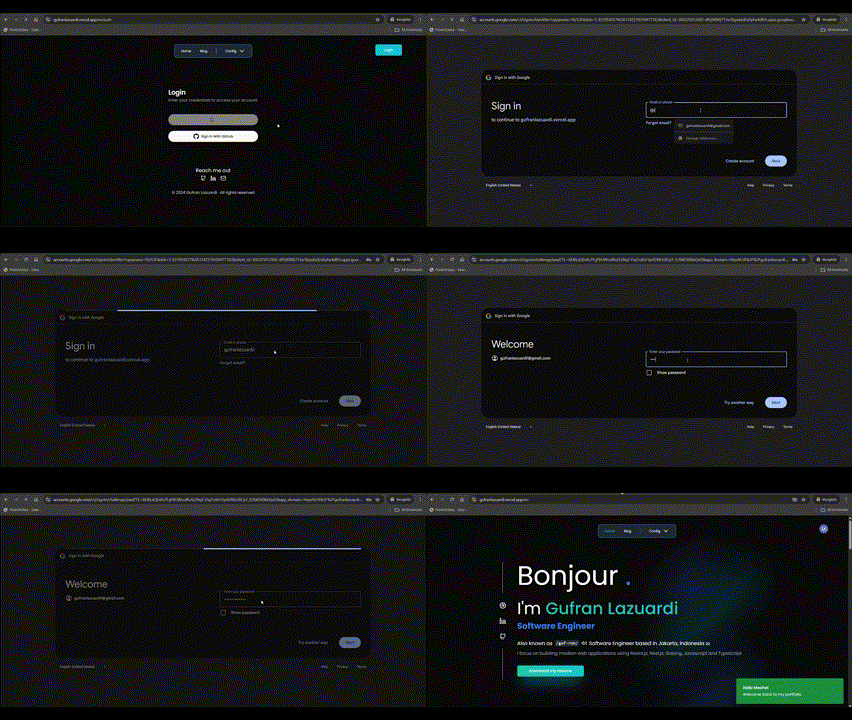
Google OAuth is a popular authentication method that allows users to sign in using their Google accounts. In this guide, you will learn how to set up Google OAuth with Auth.js in a Next.js project.
Prerequisite
Before we begin, make sure you have:
- Set up Next.js 14 project
- Google Cloud account
- .env.local file for environment variables
Step 1: Creating a Google OAuth Client
- Open Google Cloud Console.
- Navigate to APIs & Services > Credentials.
- Click Create Credentials > OAuth 2.0 Client ID.
- Set Application Type to Web Application.
- Add Authorized Redirect URI: http://localhost:3000/api/auth/callback/google
- Click Create and copy the Client ID and Client Secret.
Step 2: Setup Dependency
In your Next.js project, install NextAuth:
npm install next-auth@beta
Step 3: Configuring NextAuth
The only required environment variable is AUTH_SECRET. This is a random value used by the library to encrypt tokens and email verification hashes. (See Deployment for more information). You can generate it via the official Auth.js CLI by running:
npx auth secret
Step 4: Setting Environment Variable
Next, create a configuration file and Auth.js object. This is where you can control the behavior of the library and define custom authentication logic, adapters, etc. We recommend all frameworks to create an auth.ts file in the project. In this file, we will pass all options to the framework-specific initialization function, then export the route handlers, signin and signout methods, and more.
a. Start by creating a new auth.ts file in your application root with the following content
./auth.ts
import NextAuth from "next-auth"

export const { handlers, signIn, signOut, auth } = NextAuth({
  providers: [],
})
b. Add a Route Handler in /app/api/auth/[...nextauth]/route.ts.
./app/api/auth/[...nextauth]/route.ts
import { handlers } from "@/auth" // Referring to the auth.ts we just created
export const { GET, POST } = handlers
c. Add optional Middleware to keep the session active, this will update the session expiration every time it is called
./middleware.ts
export { auth as middleware } from "@/auth"
Create a new file at pages/api/auth/[...nextauth].ts and configure NextAuth:
import NextAuth from "next-auth";
import GoogleProvider from "next-auth/providers/google";

export default NextAuth({
  providers: [
    GoogleProvider({
      clientId: process.env.GOOGLE_CLIENT_ID as string,
      clientSecret: process.env.GOOGLE_CLIENT_SECRET as string,
    }),
  ],
  secret: process.env.NEXTAUTH_SECRET,
});
Step 5: Using Authentication in Your App
You can now use NextAuth in your apps. For example, to add login and logout buttons:
"use client";

import { signIn, signOut, useSession } from "next-auth/react";

export default function AuthButtons() {
  const { data: session } = useSession();

  return session ? (
    <div>
      <p>Welcome, {session.user?.name}</p>
      <button onClick={() => signOut()}>Sign out</button>
    </div>
  ) : (
    <button onClick={() => signIn("google")}>Sign in with Google</button>
  );
}
Summary
That's it! You've successfully set up Google OAuth authentication in your Next.js app using NextAuth v4. 🎉
0 Views